data_coNdUctorS User Guide
data_coNdUctorS is a desktop address book application for managing contact details of members in NUS Co-Curricular Activity (CCA) groups. It is optimised for use via a Command Line Interface (CLI) while still having the benefits of a Graphical User Interface (GUI). If you can type fast, data_coNdUctorS can get your contact management tasks done faster than traditional GUI apps.
Table of Contents
- Quick Start
- Command Summary
- Features
- General Notes about Command Format
- Adding a Contact: add
- Editing a Contact: edit
- Deleting a Contact: delete
- Finding Contacts by Contact Details: find
- Listing all Contacts: list
- Viewing Help: help
- Clearing all Entries: clear
- Exiting the Program: exit
- Displaying Contacts in Pages: Pagination
- Showing Total Number of Contacts: Footer Status Bar
- Saving the Data
- Editing the Data File
- What is Considered as Invalid Contacts
- Contact Fields Constraints
- FAQ
- Known Issues
Quick start
Ensure you have Java
17or above installed in your Computer.Download the latest
.jarfile from here.Copy the file to the folder you want to use as the home folder for the application.
Open a command terminal,
cdinto the folder you put the jar file in, and use thejava -jar data_coNdUctorS.jarcommand to run the application. A GUI similar to the below should appear in a few seconds.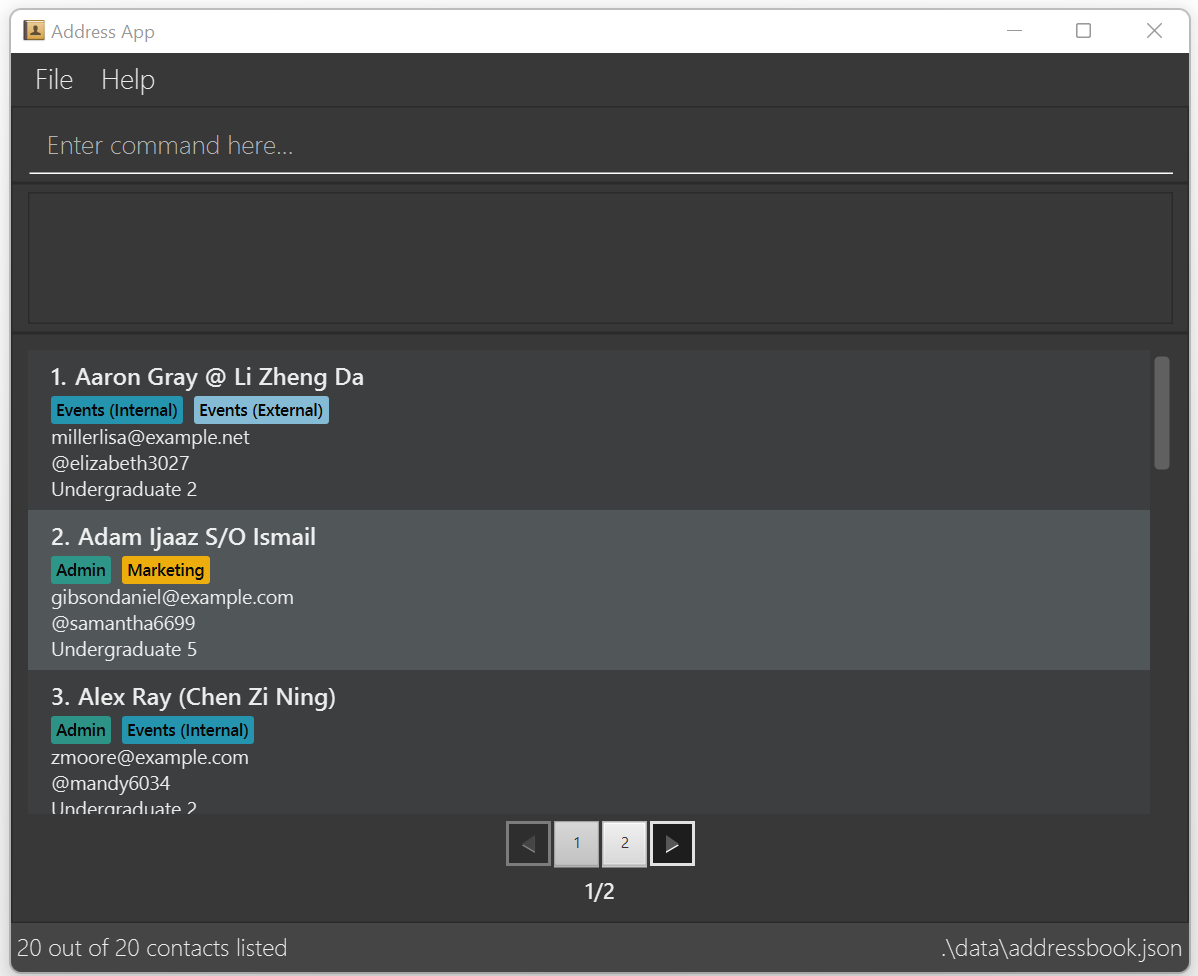
Note how the app:
- Contains some sample data
- Displays contacts in alphabetical order
- Utilises Pagination where 10 contacts are displayed per page at any one time
- Shows both the number of contacts listed in the displayed pages and the total number of contacts stored in the application in the status bar footer
Type the command in the command box and press Enter to execute it. e.g. typing
helpand pressing Enter will open the help window.
Some example commands you can try:list: Lists all contacts.add n/John Doe th/johnny_9876_haha ss/undergraduate 3 e/johnd@example.com r/Admin: Adds a contact namedJohn Doeto the Address Book application.delete 3: Deletes the 3rd contact shown in the current displayed list.clear: Deletes all contacts.exit: Exits the app.
Refer to Command Summary for a general overview of the commands available.
Refer to Features below for the details of each command feature and UI features.
Command Summary
| Action | Format, Examples |
|---|---|
| Add adds a contact | add n/NAME th/TELEGRAM_HANDLE ss/STUDENT_STATUS e/EMAIL r/ROLE… [nn/NICKNAME] e.g., add n/James Ho th/jamesho123 ss/undergraduate 3 e/jamesho@example.com r/Admin r/President |
| Edit edits a contact | edit INDEX [n/NAME] [th/TELEGRAM_HANDLE] [e/EMAIL] [ss/STUDENT_STATUS] [r/ROLE]… [nn/NICKNAME]edit FULL_NAME [n/NAME] [th/TELEGRAM_HANDLE] [e/EMAIL] [ss/STUDENT_STATUS] [r/ROLE]… [nn/NICKNAME]e.g., edit 2 n/James Lee e/jameslee@example.com e.g., edit James Ho n/James Lee |
| Delete deletes a contact | delete INDEX e.g. delete 3 delete FULL_NAME e.g. delete James Ho delete n/FULL_NAME e.g. delete n/James Ho |
| Find shows specific contacts | find [n/NAME] [th/TELEGRAM_HANDLE] [e/EMAIL] [ss/STUDENT_STATUS] [r/ROLE]… [nn/NICKNAME]e.g., find n/jam lee r/admin r/vice president nn/jl |
| List shows all contacts | list [all]... [contacts]... [allcontacts]... |
| Help provides more details on commands' usage | help |
| Clear clears all contacts | clear |
| Exit exits the app | exit |
Feature Details
General Notes about Command Format
Terminologies used to refer to a specific part of the command format are shown below:
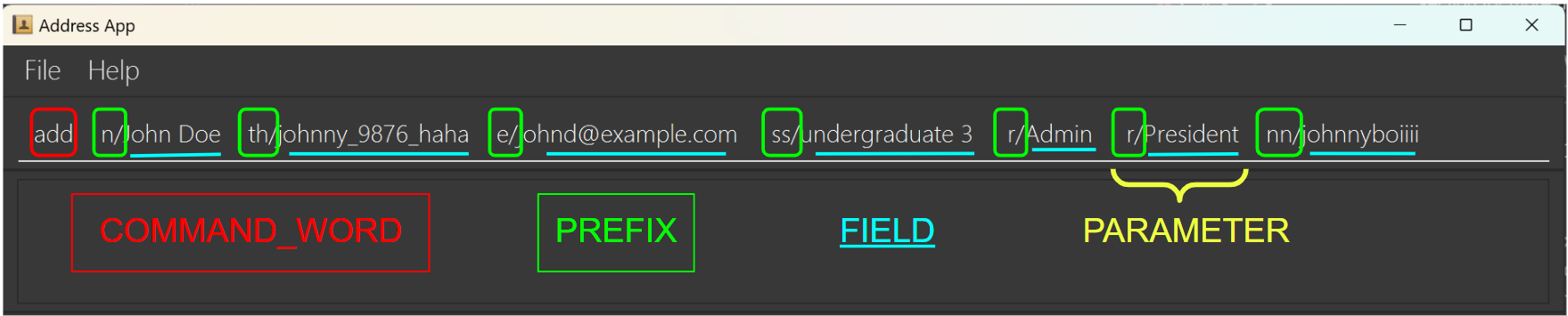
Words in
UPPER_CASEare to be supplied by the user.
e.g.add n/NAMEcan be used asadd n/John Doe.Items in square brackets are optional.
e.gn/NAME [nn/NICKNAME]can be used asn/John Doe nn/johnnyboiiiior asn/John Doe.Items with
… after them can be used from one to multiple times.
e.g.r/ROLE…can be used twice asr/External r/Marketingetc.Parameters can be in any order.
e.g. if the command specifiesn/NAME e/EMAIL,e/EMAIL n/NAMEis also acceptable.Extraneous parameters for commands that do not take in parameters (such as
exitandclear) will be ignored.
e.g. if the command specifiesexit 123, it will be interpreted asexit.The COMMAND_WORD is not case-sensitive. (eg. add; ADD; aDd are all interpreted as
add)User input is limited to 1000 characters.
If you are using a PDF version of this document, be careful when copying and pasting commands that span multiple lines as space characters surrounding line-breaks may be omitted when copied over to the application.
Adding a Contact: add
Format:add n/NAME th/TELEGRAM_HANDLE e/EMAIL s/STUDENT_STATUS r/ROLE… [nn/NICKNAME]
Action: Adds a contact to the address book.
Parameters do not need to be in order.
r/ROLE can be used 1 to any non-zero number of times.
nn/NICKNAME is optional.
Tip: Refer to Contact Fields for constraints on each of the contact fields.
Examples:
add n/John Doe th/johndoe e/johnd@example.com ss/undergraduate 3 r/Admin r/President nn/altNameadd n/Betsy Crowe th/betsycrowe e/betsycrowe@example.com ss/masters r/President r/Adminadd n/Alex Yeoh th/alexyeoh123 e/alexyeoh@example.com ss/masters r/President r/Admin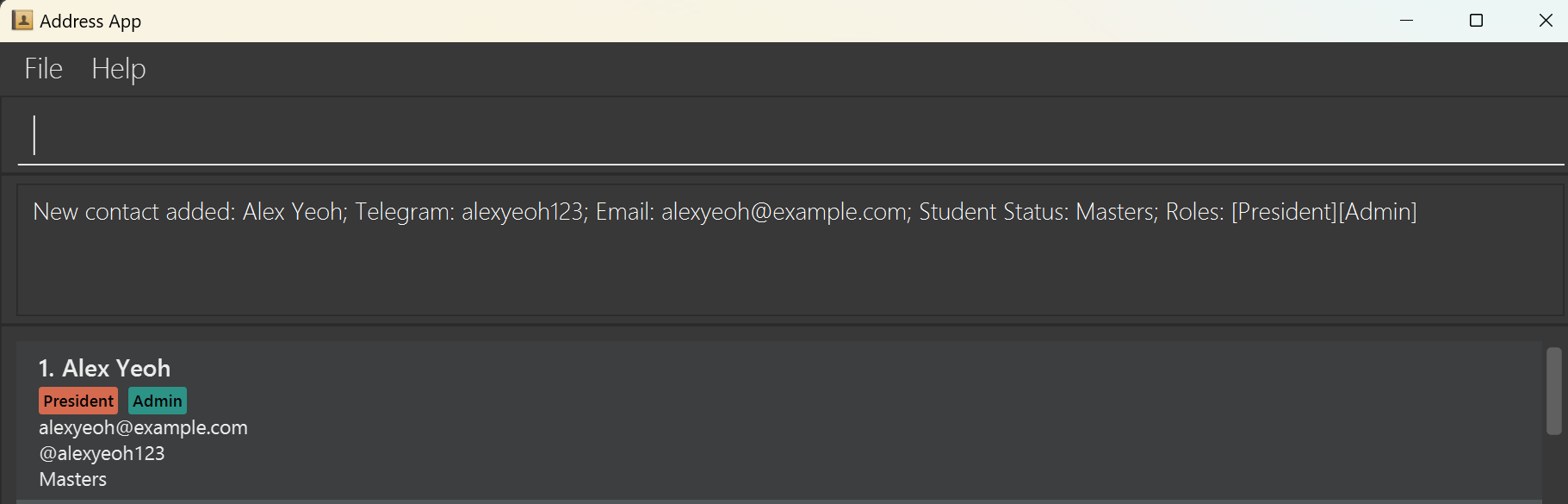
Note:
addcommand will fail if you try to add a person who is already in the address book. You may refer to invalid contacts to see what is considered as having the same identity.addcommand will fail if you attempt to add a person with a duplicate field as an existing contact, please refer to invalid contacts for more information.
Editing a Contact: edit
Action: Edits an existing contact in the address book.
You may edit by specifying the index of
the contact in the displayed address book, or by specifying the full name
of any currently displayed contact that you wish to edit.
- Only contacts shown in the displayed list can be edited.
- After the command is successfully executed, the full contact list will be displayed.
- At least one of the optional fields must be provided.
- Existing values will be updated to the input values.
- When editing roles, the existing roles of the contact will be removed.
Edit by index
Format: edit INDEX [n/NAME] [th/TELEGRAM_HANDLE] [e/EMAIL] [ss/STUDENT_STATUS] [r/ROLE]… [nn/NICKNAME]
- Edits the contact at the specified
INDEX. - The index refers to the index number shown in the displayed contact list.
- The index must be a positive integer 1, 2, 3, … (if the number given is larger than MAX_INT (2147483647), it will be treated as a non-zero unsigned integer)
Examples:
edit 1 th/johndoe123 e/johndoe@example.com
Edits the telegram handle and email address of the 1st displayed contact to bejohndoe123andjohndoe@example.comrespectively.edit 2 r/Admin r/President
Edits the roles of the 2nd displayed contact to beAdminandPresident, this replaces all existing roles of the contact.
Edit by name
Format: edit FULL_NAME [n/NAME] [th/TELEGRAM_HANDLE] [e/EMAIL] [ss/STUDENT_STATUS] [r/ROLE]… [nn/NICKNAME]
- Edits the contact specified by
FULL_NAME. - The
FULL_NAMEhas to be an exact match to an existing contact which is displayed. - The
FULL_NAMEis not case-sensitive.
Examples:
edit alex yeoh th/johndoe123 e/johndoe@example.com
Edits the telegram handle and email address of the contactAlex Yeohto bejohndoe123andjohndoe@example.comrespectively.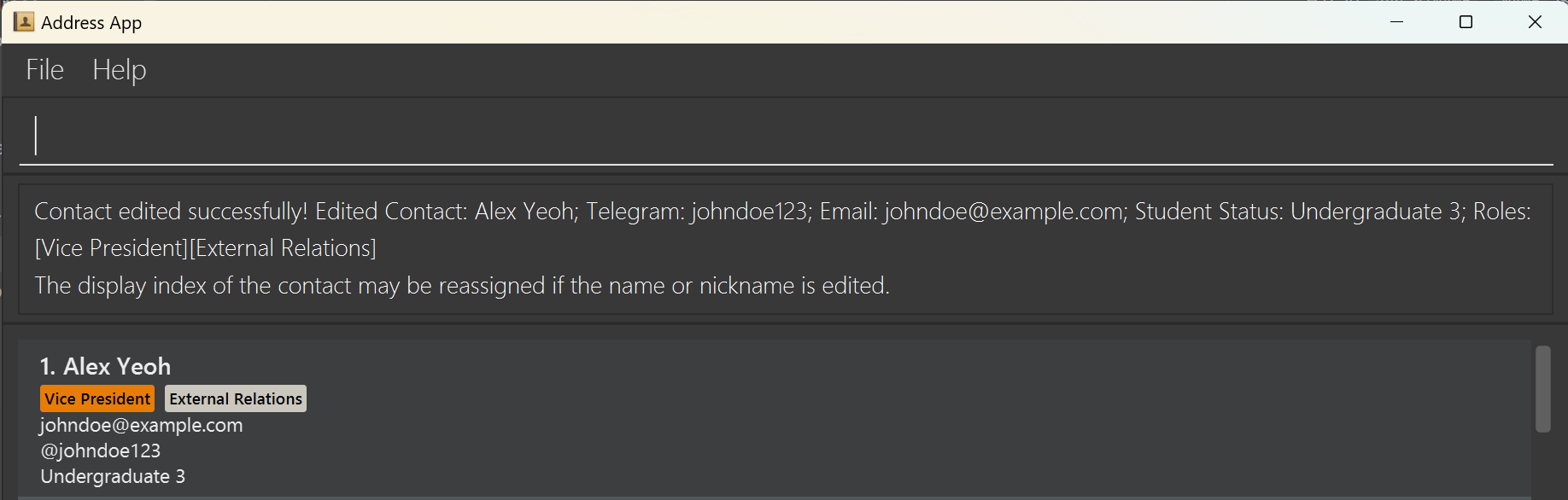
Note:
FULL_NAMErefers to the full name of contact displayed (to edit) whilen/NAMEis an input to change the contact's name to.editcommand will fail if the changes would result in the edited contact having the same identity as another existing contact, as described in section invalid contacts.editcommand will fail if you enter a duplicate field as an existing contact as seen in section invalid contacts.- In the event of
FULL_NAMEmatching to multiple contacts that exist, you will have tofind n/FULL_NAMEfollowed byedit INDEX PARAMETER...to choose which contact of the specifiedFULL_NAMEyou wish to edit.
Deleting a Contact: delete
Action:
Deletes the specified contact from the address book.
You may delete by specifying the index of
the contact in the displayed address book, or by specifying the full name
of any currently displayed contact that you wish to delete.
Delete by index
Format: delete INDEX
- Deletes the contact at the specified
INDEX. - The index refers to the index number shown in the displayed contact list.
- The index must be a positive integer 1, 2, 3, … (if the number given is larger than MAX_INT (2147483647), it will be treated as a non-zero unsigned integer)
Examples:
listfollowed bydelete 2deletes the 2nd contact in the address book.find n/alexfollowed bydelete 1deletes the 1st contact in the results of thefindcommand.
Delete by name
Format: delete FULL_NAME or delete n/FULL_NAME
- Delete the contact whose name matches the specified
FULL_NAME. - Only contacts shown in the displayed contact list will be deleted.
find n/alexfollowed bydelete Amy Gouldwould not work, since Amy Gould would not be displayed.- The
FULL_NAMEhas to be an exact match to an existing contact in the displayed list. - The
FULL_NAMEis not case-sensitive.
Examples:
- Both
delete Amy Gouldanddelete n/Amy Goulddelete the user whose name isAmy Gould(not case-sensitive) in the address book.
Note:
- You may not delete by multiple ways concurrently. (eg.
delete FULL_NAME n/FULL_NAME_2ordelete INDEX n/FULL_NAME) - In the event of
FULL_NAMEmatching to multiple contacts that exist, you will have tofind n/FULL_NAMEfollowed byedit INDEX PARAMETER...to choose which contact of the specifiedFULL_NAMEyou wish to edit.
Tip: How to edit / delete contacts by full names when more than 1 contact has the same name?
- If you input
editordeletefollowed by aREPEATED_FULL_NAMEin the address book, an error will arise, prompting you to delete by index instead. - Hence, you should:
- Use the command
find n/REPEATED_FULL_NAMEwhich can be found below - This displays the contacts with the
REPEATED_FULL_NAME - Search for the one you want to edit / delete and note down its
INDEX - Edit / Delete accordingly by the
INDEX
- Use the command
Finding Contacts by Contact Details: find
Format: find [n/NAME] [th/TELEGRAM_HANDLE] [e/EMAIL] [ss/STUDENT_STATUS] [r/ROLE]… [nn/NICKNAME]
Action: Finds contacts whose details matches all given fields.
- Each PREFIX can only be used once (except Role)
- All fields are not case-sensitive. e.g.
find r/pResiDent→ valid - At least one PREFIX must come immediately after
findfind n/abc→ validfind abc n/rawr→ invalid
- Role field
[r/ROLE]:- Can be repeated any number of times e.g.
find r/Vice President r/Admin→ valid - Have to take a valid role value (Refer to role constraints)
e.g.find r/pres→ invalid
e.g.find r/President→ valid - Not case-sensitive e.g.
find r/pResiDent→ valid - Specifying multiple roles returns contacts holding all specified roles.
e.g.
find r/Vice President r/Adminwill only return contacts holding both roles.
- Can be repeated any number of times e.g.
- All other fields
[n/NAME] [th/TELEGRAM_HANDLE] [e/EMAIL] [ss/STUDENT_STATUS] [nn/NICKNAME]:- The order of the keywords does not matter. e.g. query
Hans Bowill matchBo Hans. - Substring matching e.g. query
Hanwill matchHans, but queryHanswill not matchHan. - Each keyword is treated as a separate substring e.g. both keywords in query
Hans Ansbowill matchHansbo. - Contacts matching only one keyword will not be returned (i.e.
ANDsearch). e.g. queryHans Bowill matchHans BoeyandHans Jobobut notHans Gruber.
- The order of the keywords does not matter. e.g. query
Examples:
find n/johnreturnsJohnny TanandJohn Doe.find n/harlot olive ss/mastersreturnsCharlotte Oliveiro, who holds the student statusmasters.find r/Admin r/PresidentreturnsJoanna Carrollwho holds both roles, but notAlex Yeohwho only holds the roleAdmin.
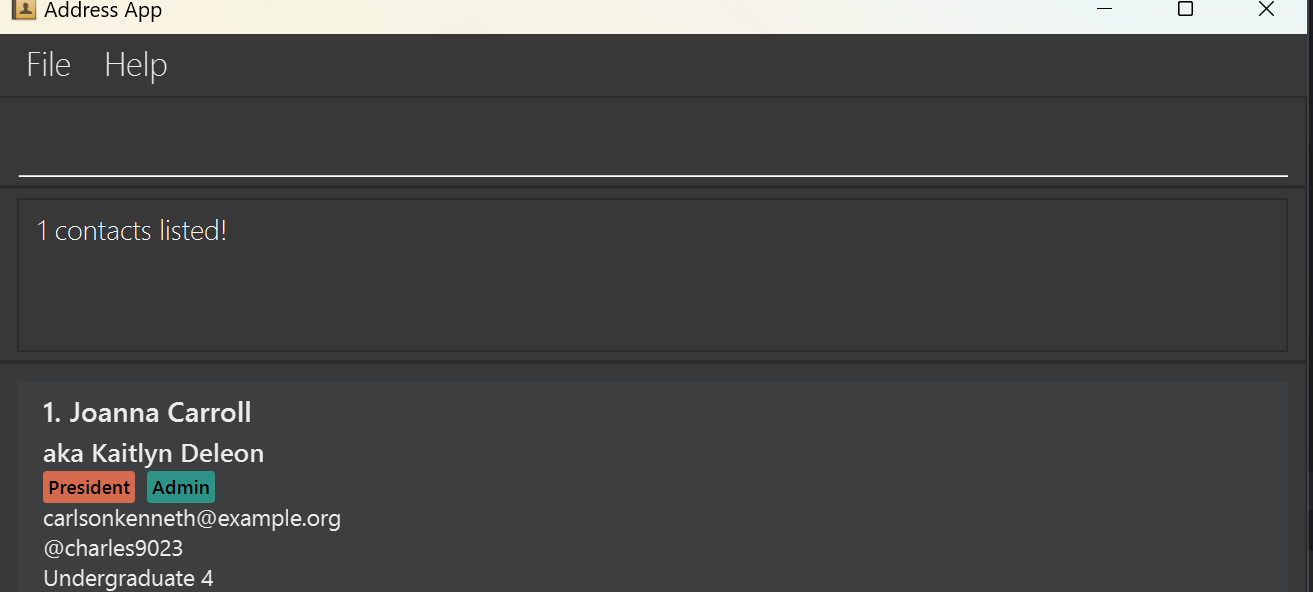
Note: Searching by Name does not include Nicknames (and vice versa). find n/Alex does not include Contacts with the field nn/alex
- If you do not find the contact via searching by Name, you may want to search via Nickname instead.
Tip: How to revert back to the full contact list after find?
- Execute command
listto display the full contact list. Refer to List for more details. - The displayed list will automatically revert to the full list after the successful execution of
addoredit.
Listing all Contacts: list
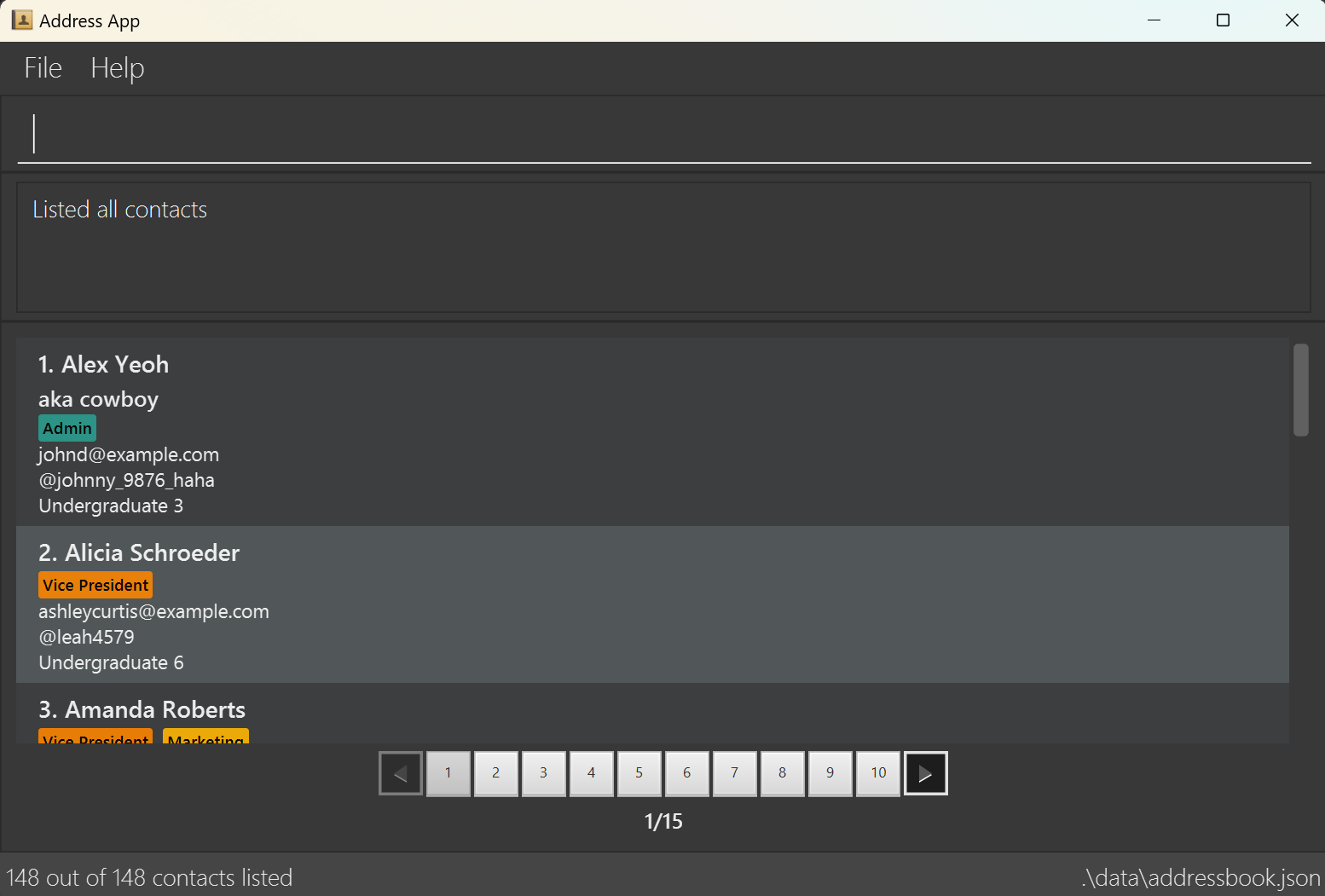
Format: list [all]... [contacts]... [allcontacts]...
Action: Shows a list of all contacts in the address book.
- Optional parameters of
allorcontactsorallcontactsor any combinations of these three words separated by spaces are accepted
Viewing Help: help
Format: help
Action: Shows a message explaining how to access the help page.

This also prompts the user to do help COMMAND_WORD where COMMAND_WORD refers to:
addeditdeletefindlistclearexit
From this, the user can get a quick reminder on how to use the various commands without having to refer to the User Guide.
Clearing all Entries: clear
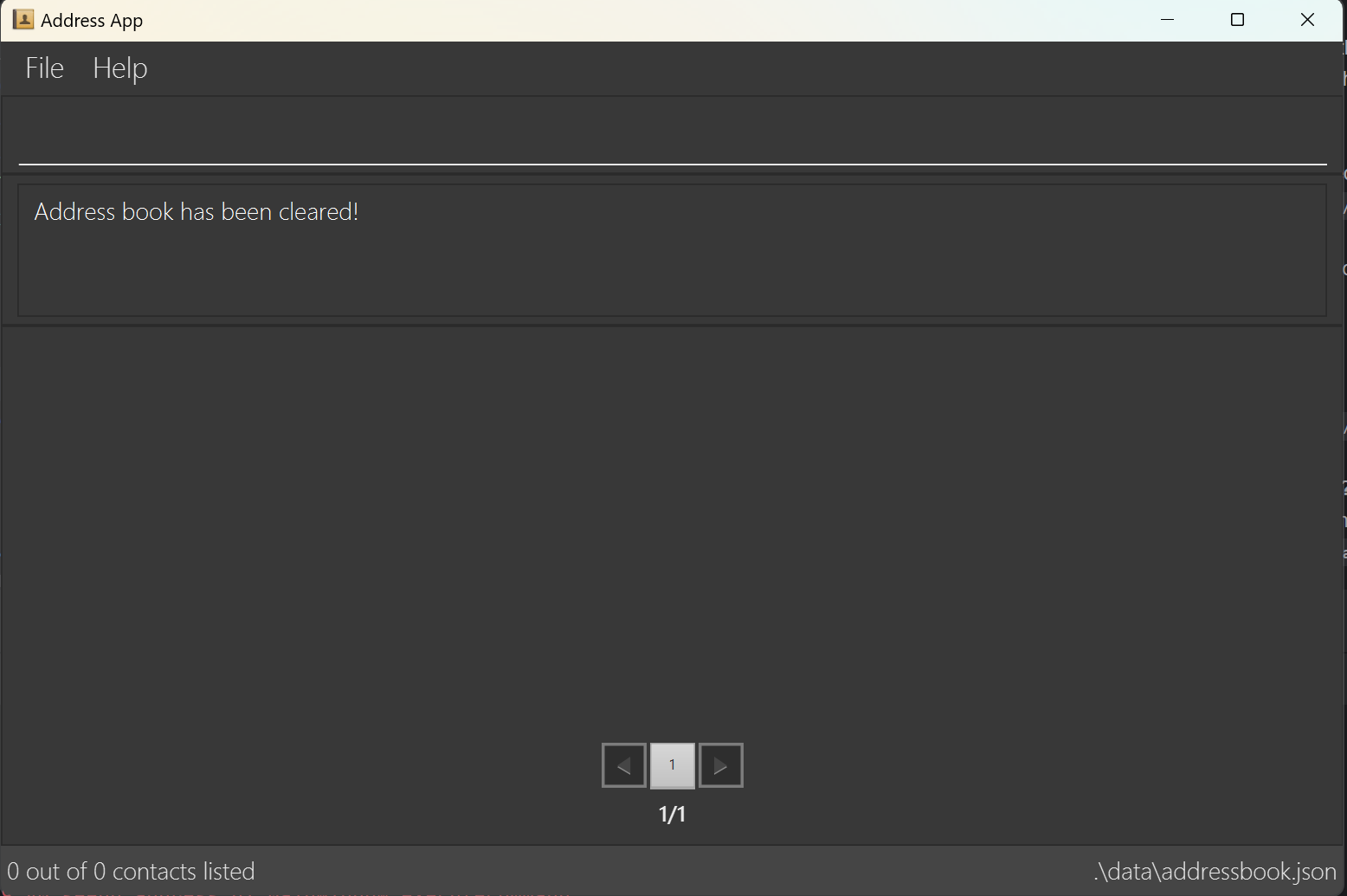
Format: clear
Action: Clears all entries from the address book.
Exiting the Program: exit
Format: exit
Action: Exits the program.
Displaying Contacts in Pages: Pagination
The app comes with a pagination at the bottom of the list. It supports navigation to a specific page or navigation to
the next or previous page. Each page contains a maximum of 10 items. The pagination supports a maximum of 10 pages
being displayed at one time, to access more pages, one can go to the last page shown at the bottom and click on NEXT page button to access other pages.
Alternatively, users can make use of left and right arrow keys on the keyboard to navigate to the previous and next page. To do this, users need to make sure that they have at least one click on the pagination before using keyboard to make sure that the app is focusing on the pagination component.
Pagination UI:

Showing Total Number of Contacts: Status Bar Footer
A status bar that contains information about the number of contacts in the list and the address book data file path is attached as a footer at the bottom of the app. It shows the total number of contacts being listed in the app.
The footer will display x out of y contacts listed, where x is the number of contacts in filtered list while y is the number of contacts in the entire list
Examples:
find n/Adammay show only 1 contact out of 19. 1 refers to the number of found contacts, 19 refers to the total number of contacts in the address book.
Saving the Data
AddressBook data are saved in the hard disk automatically after any command that changes the data. There is no need to save manually.
Editing the Data File
AddressBook data are saved automatically as a JSON file [JAR file location]/data/addressbook.json. Advanced users are welcome to update data directly by editing that data file.
Caution: If your changes to the data file makes its format invalid, AddressBook will discard all data and start with an empty data file at the next run. Hence, it is recommended to take a backup of the file before editing it. Furthermore, certain edits can cause the AddressBook to behave in unexpected ways (e.g., if a value entered is outside the acceptable range). Therefore, edit the data file only if you are confident that you can update it correctly.
What is Considered as Invalid Contacts
Identity conflict:
- No two contacts are allowed to share the same identity in the address book.
- Two contacts are considered to have the same identity if they share the same
NameandNickname. - Note that
Nicknameis case-sensitive, e.g.nn/aliceandnn/Aliceare considered different nicknames.
Duplicate fields
- No two contacts are allowed to share the same fields for
Telegram Handle,Email, andNickname. - Note that
Telegram Handle,Email, andNicknameare all case-sensitive, and will only be considered duplicate entries if the case matches exactly. - In the entire address book, there can only be 1 President.
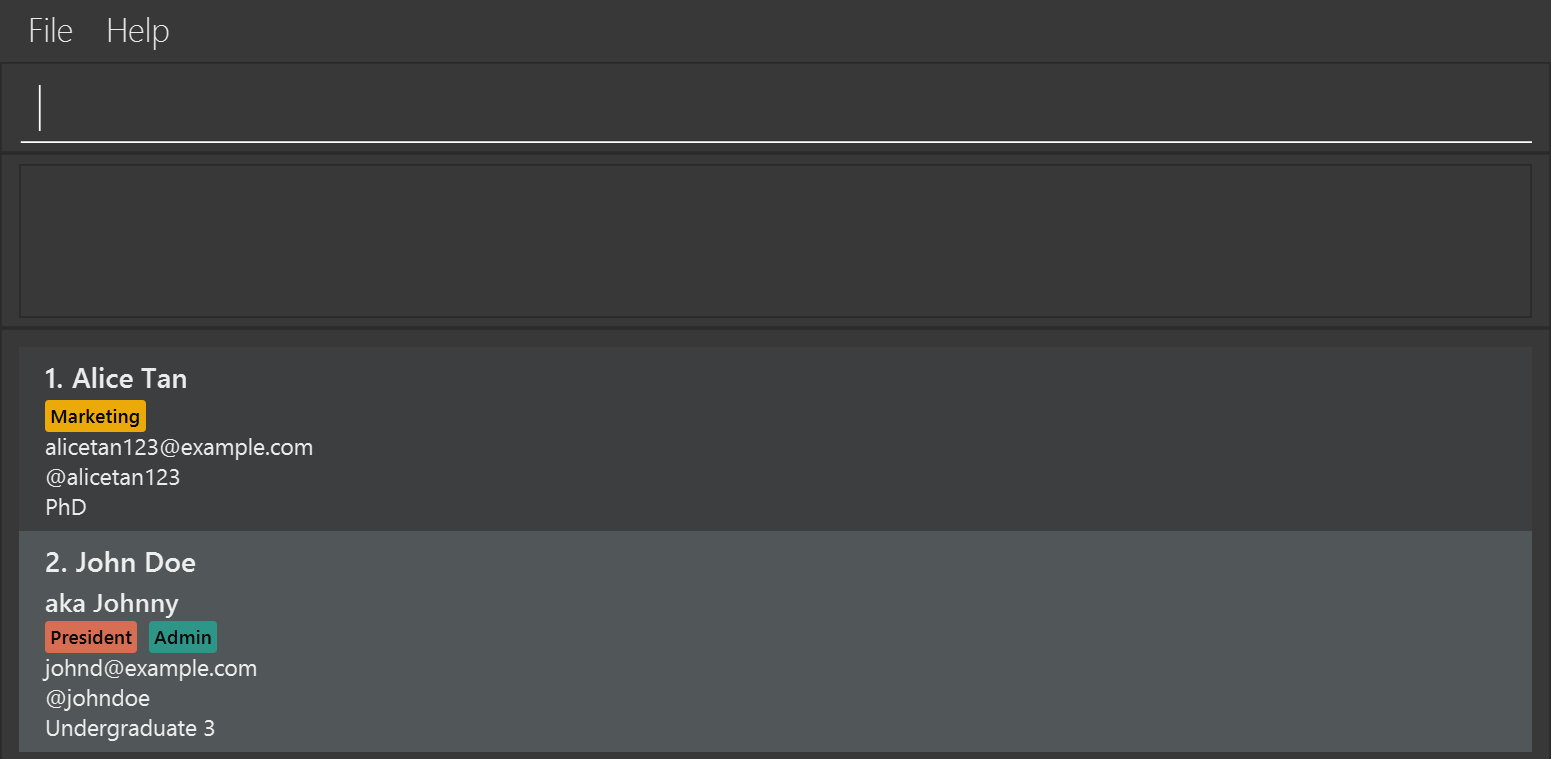
For example, if there are contacts with the following data:
n/Alice Tan th/alicetan123 e/alicetan123@example.com ss/phd r/Marketingn/John Doe th/johndoe e/johnd@example.com ss/undergraduate 3 r/Admin r/President nn/Johnny
Note: Alice Tan's lack of nickname is considered a unique nickname to Alice Tan. Also, John has the role of President.
Assuming the above entry in the address book, the following parameters passed into edit / add are considered valid / invalid:
| Case | Valid | Invalid |
|---|---|---|
| 1 | n/John Doe nn/notJohnny ... → same Name but different Nickname n/Alice Tan nn/anyNickname ... → same Name but unique Nickname | n/John Doe nn/Johnny ... → John Doe with nickname Johnny already existsn/John Depp nn/Johnny ... → nickname Johnny already belongs to an existing contactn/Alice Tan ... → Alice Tan without a nickname already exists (only applicable to add command as editing to the same original contact is allowed) |
| 2 | th/notalicetan123 ...th/notjohndoe ... | th/johndoe ... → telegram handle already belongs to an existing contact |
| 3 | e/notjohnd@example.com ... | e/johnd@example.com ... → email already belongs to an existing contact |
| 4 | r/Admin r/Marketing ... (and r/President not inside) | r/Admin r/President ... → John is already President |
Contact Fields Constraints
| Field | Prefix* | Valid examples | Invalid examples |
|---|---|---|---|
| NAME | n/ | Gina TanJane Smith @ JonesJane Smith@JonesRavi S/O RamasamyDevi D/O RajaratnamJanelle Wong (Jane) | James&spaces must come before and after D/O or S/O → RaviS/ORamasamyDeviD/ORajaratnam |
| TELEGRAM HANDLE | th/ | ginatan123jane_smith28 | @ginatan123 |
e/ | gina_tan@example-web.com | gina_tan@ | |
| STUDENT STATUS | ss/ | Undergraduate 3MastersPhD | u 1undergraduate 7 |
| ROLE | r/ | PresidentEvents (External) | Events(Internal) |
| NICKNAME | nn/ | genie34 ;) |
- By default, all fields inputted after the prefix must be non-empty when prefix is specified (except
nn/).
Tip: Case sensitivity
Telegram Handle,Email, andNicknameare case-sensitive, and will retain the exact format as provided by the user.Name,Student Status, andRoleare not case-sensitive, and will be automatically converted into their official format.
Name
- Must contain English alphabets and spaces only, with the following exceptions:
@,S/O,D/Oin the middle of the name is allowed. e.g.Ravi S/O Ramasamy- A blank space must come before and after
S/OorD/O (INSERT_NAME)at the end of the name is allowed. e.g.Gianna (Gian)
- Must not be blank.
- Will be automatically converted to Start Case (i.e. Only the first letter of every word is in upper-case) except for D/O and S/O which will automatically converted to upper case.
Telegram Handle
- Must contain alphabets, numbers and underscores only.
- Must have a length between 5 and 32 characters inclusive.
- Must not include
@.
- Emails must be of the format
LOCAL_PART@DOMAIN. - LOCAL_PART
- Must only contain alphabets, numbers, and special characters
+_.-. - Must not start or end with any special characters.
- Must only contain alphabets, numbers, and special characters
- DOMAIN
- Domains must end with a domain label at least 2 characters long.
- Each domain label must only contain alphabets, numbers, and
-, if any. - Each domain label must not start or end with
-. - Domain does not have to include a period
., e.g..com,.eduetc
Student Status
- Must take one of the following values:
Undergraduate x(where x is an integer between 1 and 6 inclusive).MastersPhD
Role
- Each contact may take on multiple roles.
- Each role must take one of the following values:
PresidentVice PresidentAdminMarketingEvents (Internal)Events (External)External Relations
Information: Roles for each contact are displayed in the order listed above.
Nickname
- Is an optional field.
FAQ
Q: How do I transfer my data to another Computer?
A: Install the app in the other computer and overwrite the empty data file it creates with the file that contains the data of your previous AddressBook home folder.
Q: How do I update a contact's information?
A:Use the edit command followed by the contact's index or name and the new details. For example, edit 1 n/Updated Name th/new_handle.
Q: Why is my newly added contact not showing on the first page?
A: Contacts are sorted alphabetically by default. If the contact’s name falls further down the list, it may appear on a later page. Use pagination controls to locate it.
Q: What happens if I add a contact with the same name but a different nickname?
A: As long as the nickname differs, the contact will be added without conflict. However, identical Nickname and Name entries are flagged as duplicate identities and will not be allowed.
Q: Why are undergraduate 1 to 6 being allowed? Isn't it typical for undergraduates to only have 4 years of study?
A: Some undergraduate students such as those with a double degree programme has a maximum candidature period of 6 years.
Q: Why is my command returning an "Invalid Role" error?
A: Ensure roles are entered in the exact format expected by the app. An "Invalid Role" error may indicate that a role was mistyped or included with extra symbols, such as [ ].
Q: Can I undo a deletion?
A: Currently, deletions are final and cannot be undone. Always double-check before using the delete command to avoid accidental deletions.
Q: Can I add or edit or delete multiple contacts within a single command?
A: This functionality is not supported.
Q: How can I search for contacts without case sensitivity?
A: Searches are case-insensitive, so you can enter names, nicknames, or other fields without worrying about uppercase or lowercase letters.
Q: After executing the find command, why can't the display continue to show the filtered list if I add or edit a contact immediately after?
A: This functionality is not supported. Adding or editing a contact will show the full list of contacts with the updated change made as the display (i.e., as if list command has been executed after add or edit command is executed).
Known Issues
When using multiple screens, if the user moves the application to a secondary screen, and later switches to using only the primary screen, the GUI will open off-screen. The remedy is to delete the
preferences.jsonfile created by the application before running the application again.When inputting duplicate contact, if the user edits a contact with the same
NAMEandNICKNAMEas an existing contact currently produces an unclear message ("This contact already exists in the address book"), but could instead display the conflicting contact details and clarify the duplicated fields.When a wrong field is inputted, running
add n/John Doe th/johnny_9876_haha e/johnd@example.com ss/undergraduate 3 r/Admin r/President [nn/altName]outputs a vague error message ("Invalid Role"), which should specify the unrecognised role "President [".Case Sensitivity for Some Contact Fields: Some contact fields, such as
Nickname,Telegram Handle, andEmail, are currently case-sensitive, which may lead to duplicate entries when similar contacts with different cases are loaded into the address book.Delayed Display of Newly Added Contact: If a contact is added but does not appear immediately on the first page, it may be due to the alphabetical sorting. Users may need to navigate through pages to locate newly added contacts if their names fall further down alphabetically.